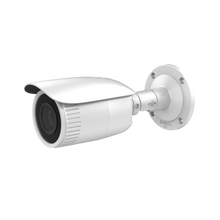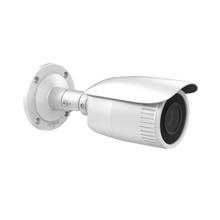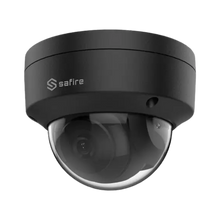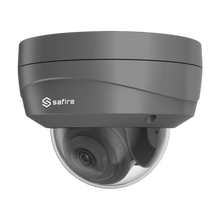
Set up your IP camera for day and night use – always get a clear image
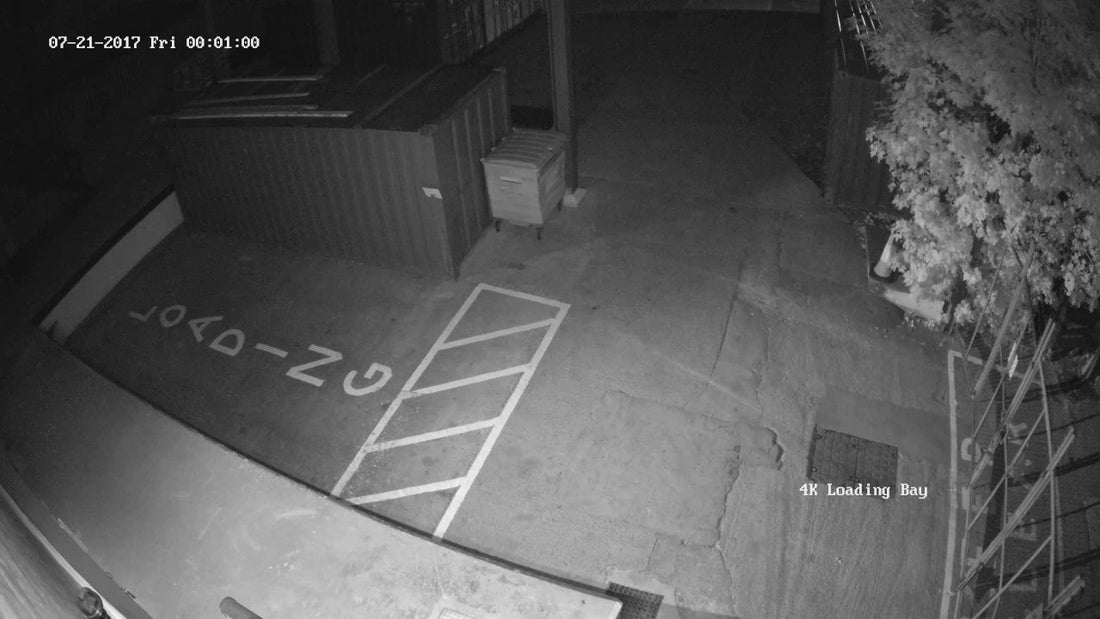
A good security camera delivers reliable footage day and night. However, we often see poor nighttime recordings or overexposed images in bright sunlight. In this article, we explain how to properly configure an IP camera for optimal performance, regardless of the time of day. We'll use examples from Uniview and Dahua , two brands you'll find at UMATECH.
1. Correct placement: 80% of your image quality
Tips for mounting:
-
Mount cameras at a height of 2.5–3 meters for an overview and detail
-
Avoid direct light sources in the image (lamps, street lights)
-
Do not point the camera at windows or mirrors
-
Use wall brackets to avoid dead spots
Always check that night vision is not disturbed by reflections or obstacles.
2. Set resolution and bitrate
More pixels aren't always better. A 4MP camera often offers a good compromise between sharpness and storage space.
Recommended settings:
-
Resolution: 2688x1520 (4MP)
-
Framerate: 20 fps
-
Bitrate: VBR (Variable Bitrate), max. 4096 kbps
Note: Too high a bitrate = large files, slower network. Too low = blocky images.
3. WDR and exposure
WDR (Wide Dynamic Range) ensures that both dark and light areas of the image remain clearly visible. Ideal for entrances or windows.
Institutions:
-
Turn on WDR when shooting in backlight
-
Adjust brightness and contrast manually if necessary
With Dahua and Uniview you can also set whether WDR switches on automatically in difficult lighting conditions.
4. Night vision and IR settings
In low light, cameras switch to IR mode. It's important that this works well without reflections.
Check settings:
-
IR LEDs on/auto
-
IR gain moderate or normal
-
Day/night mode on "Auto"
-
Enable Smart IR for stable contrast on moving objects
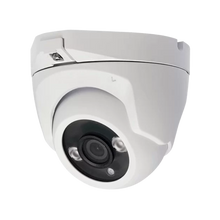
Note: Domes with glass bulbs can reflect IR. For better night vision, consider a turret model.
5. Motion detection and recording
Smart motion detection prevents you from watching empty recordings for hours.
Tips:
-
Set detection area (avoid moving trees or traffic)
-
Set sensitivity to 60–70%
-
Enable push notifications only in really important areas
Uniview and Dahua also support AI people/vehicle detection on certain models.
6. Pairing with NVR and UMATECH PoE
Connect your camera to an NVR via PoE switch or directly to a PoE NVR.
UMATECH supplies, among other things:
-
Uniview and Dahua NVRs with AI
-
PoE switches (4, 8, 16 ports)
-
UPS backup to save images even in the event of a power failure
Make sure your camera and NVR are on the same network. Use DHCP for the initial setup and then assign a static IP address.
7. UMATECH installation assistance
At UMATECH you will find:
-
Turret, dome and bullet cameras from Uniview and Dahua
-
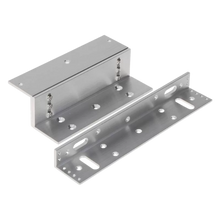
Wall and pole brackets
-
NVRs, PoE switches, and UPSs
-
Configuration and installation service on request
We are happy to advise you on which settings best suit your location and situation.
UMATECH – for sharp images, day and night.